Step 1. First Launch
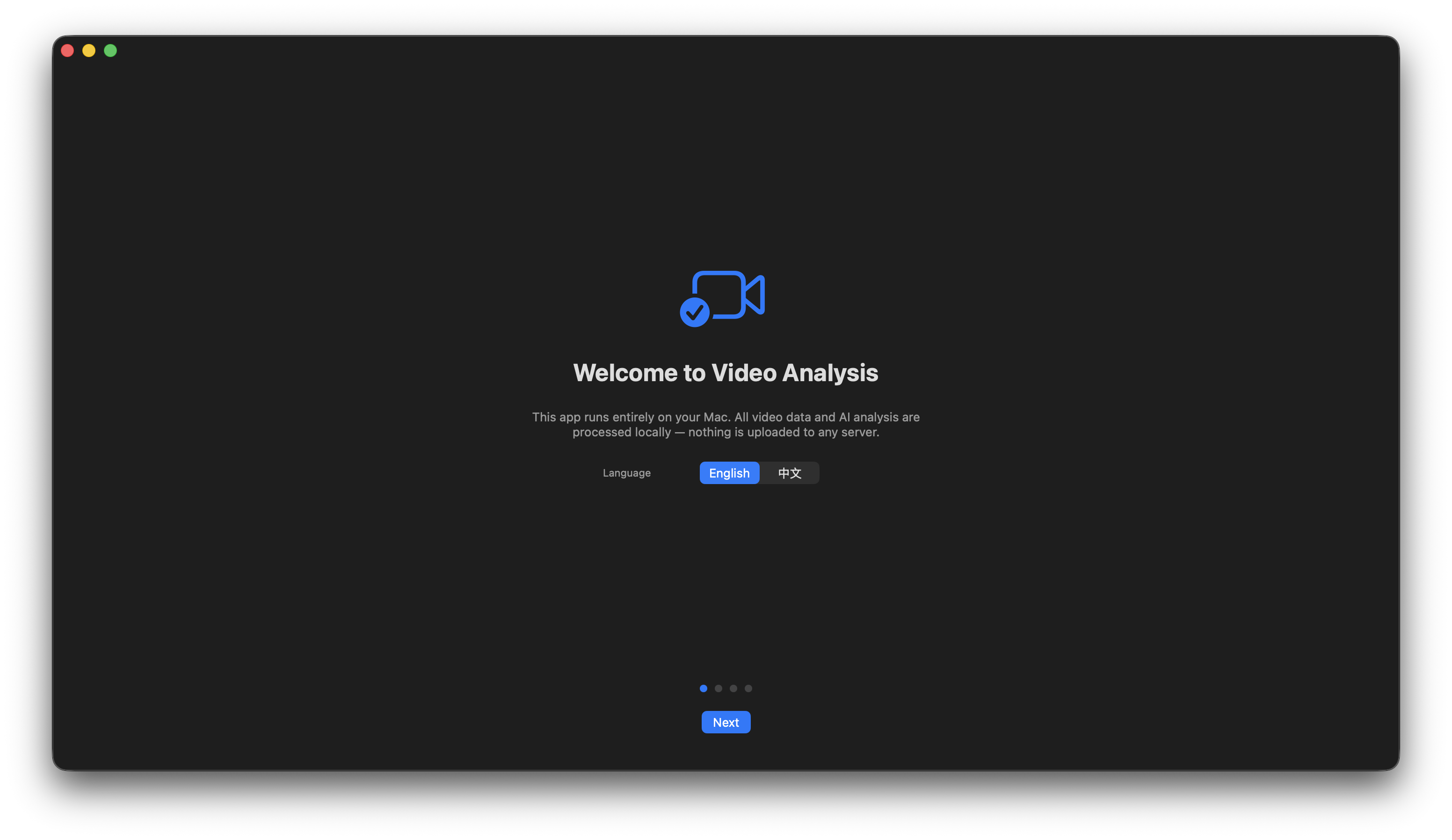
When launching the macOS App for the first time, you will enter the onboarding page.
Please select your preferred language.
Step 2. Setup Workspace and Storage
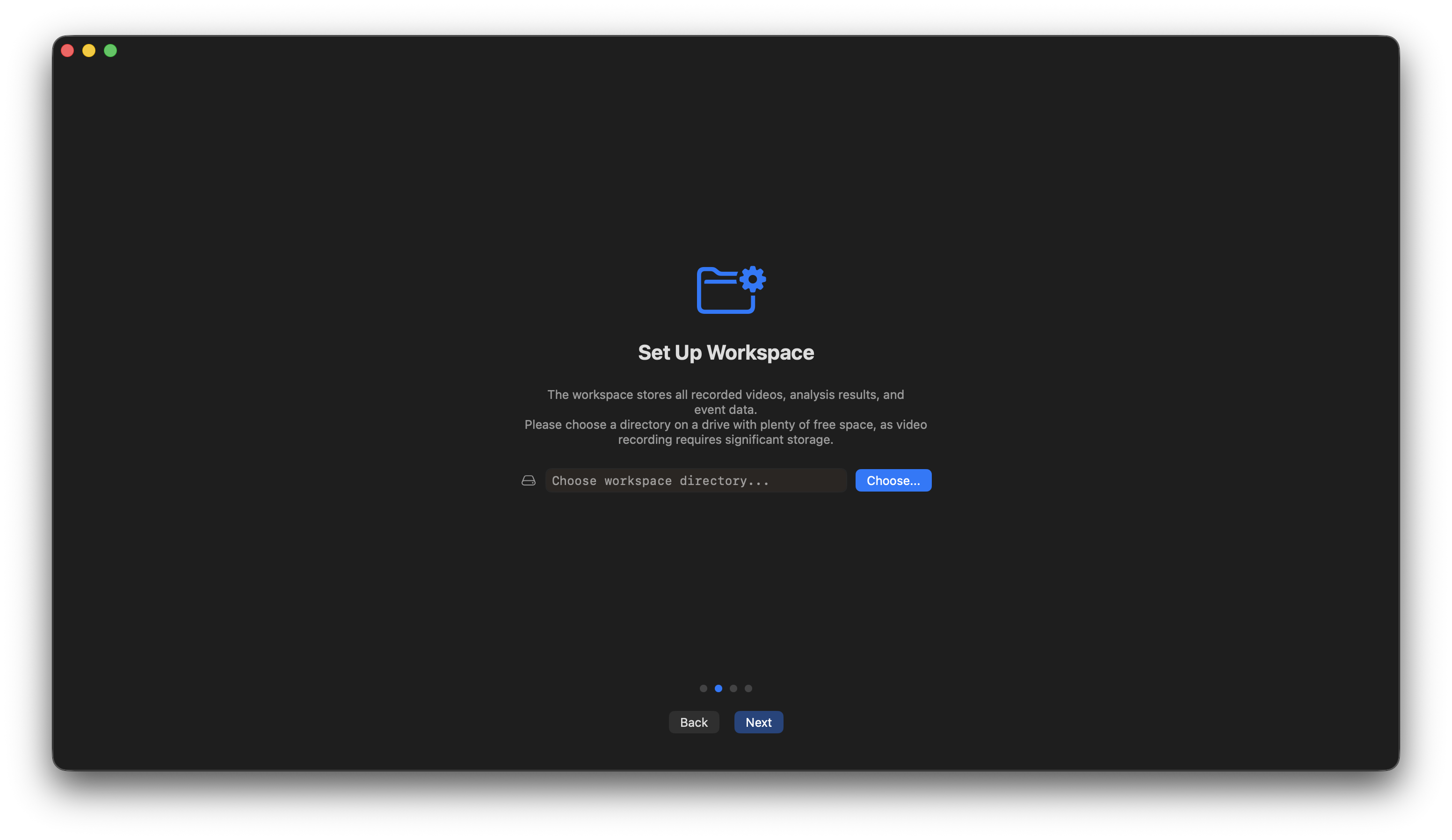
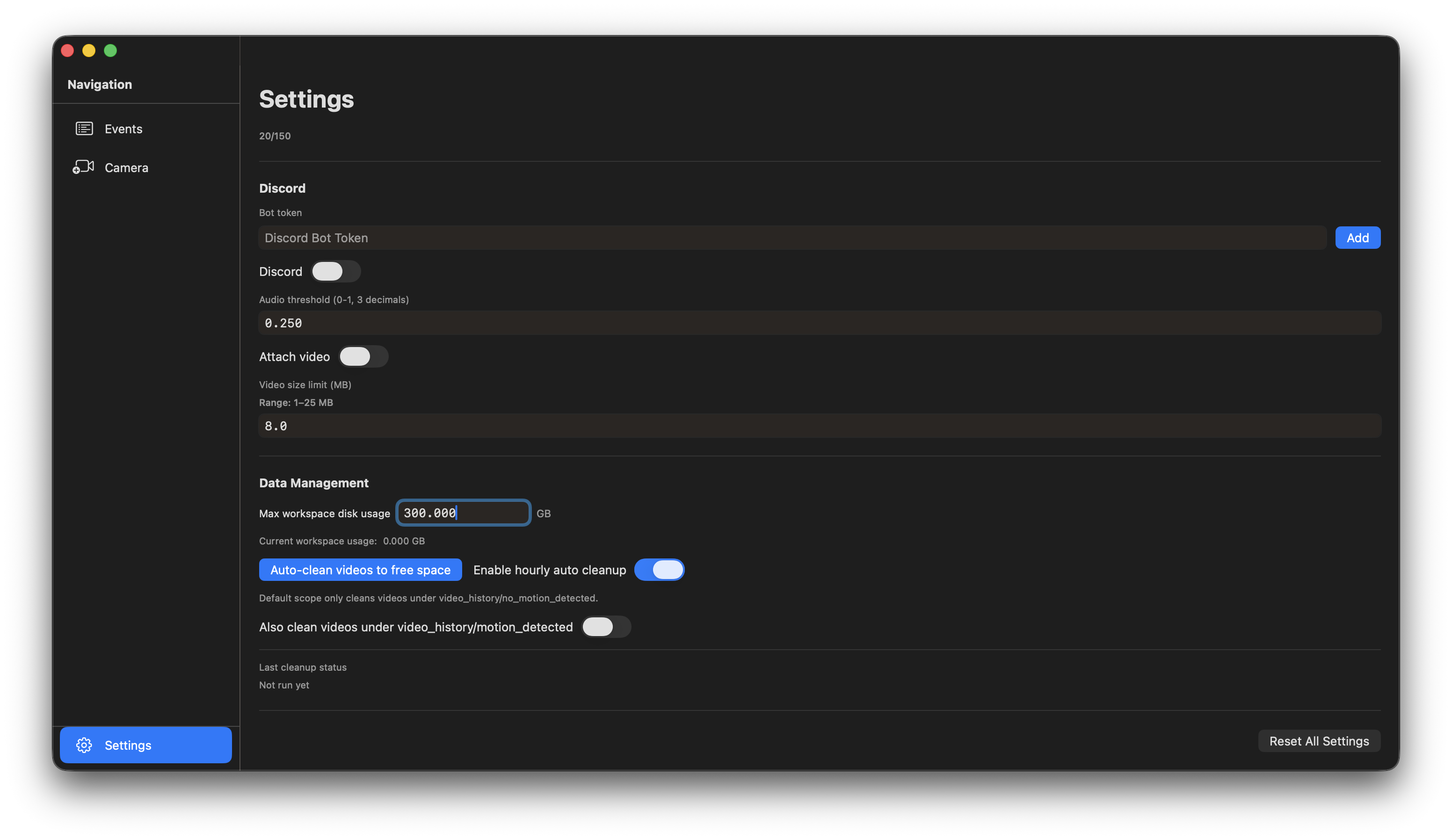
The second step is to configure the Workspace and Volume (storage size).
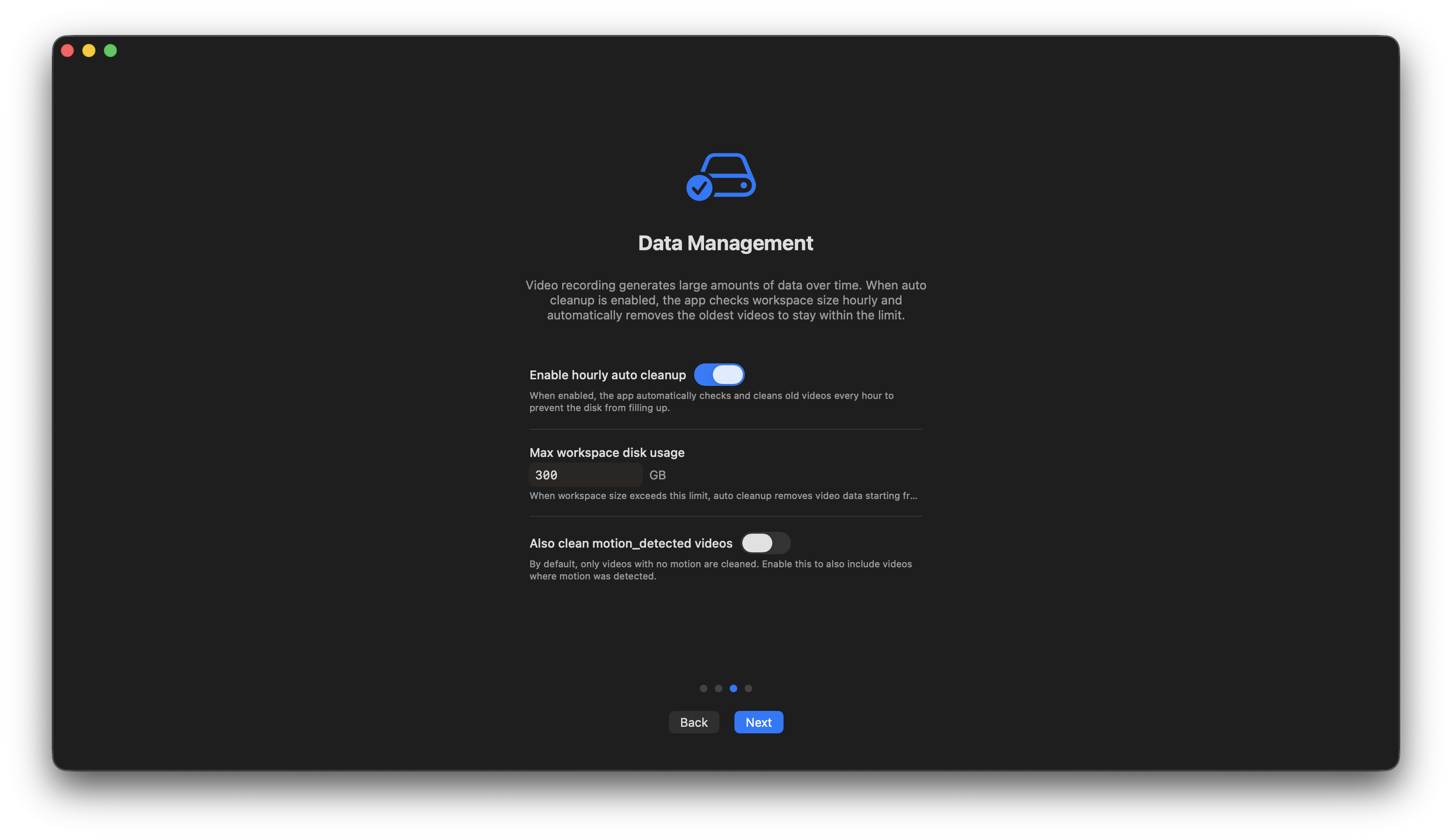
You can define the maximum storage space used for recorded videos. When the storage reaches the limit, the system will automatically clean up old videos based on your settings.
By default, videos without motion will be automatically removed based on date.
You can also configure the system to automatically delete all types of videos.
Step 3. Add Cameras
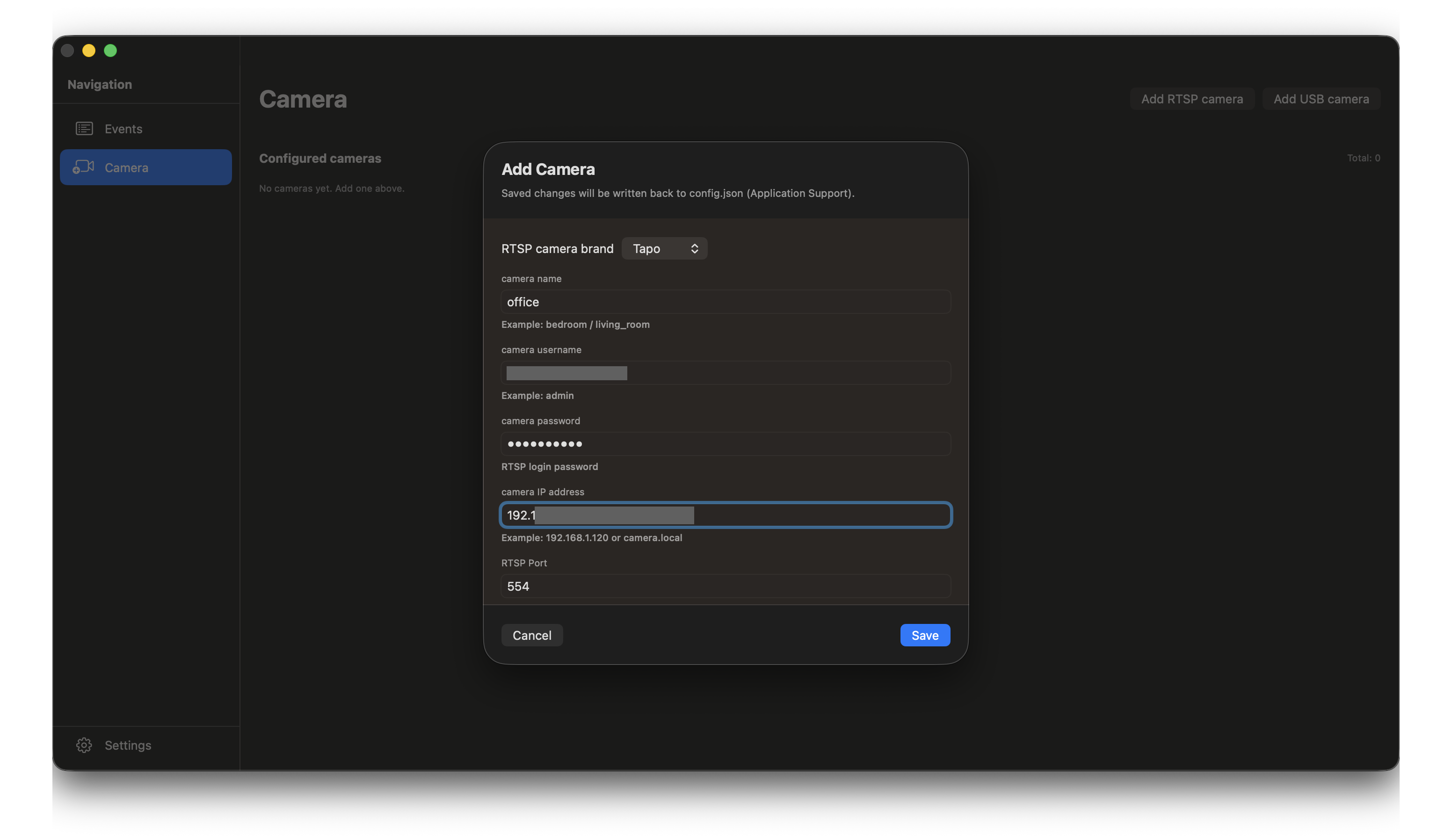
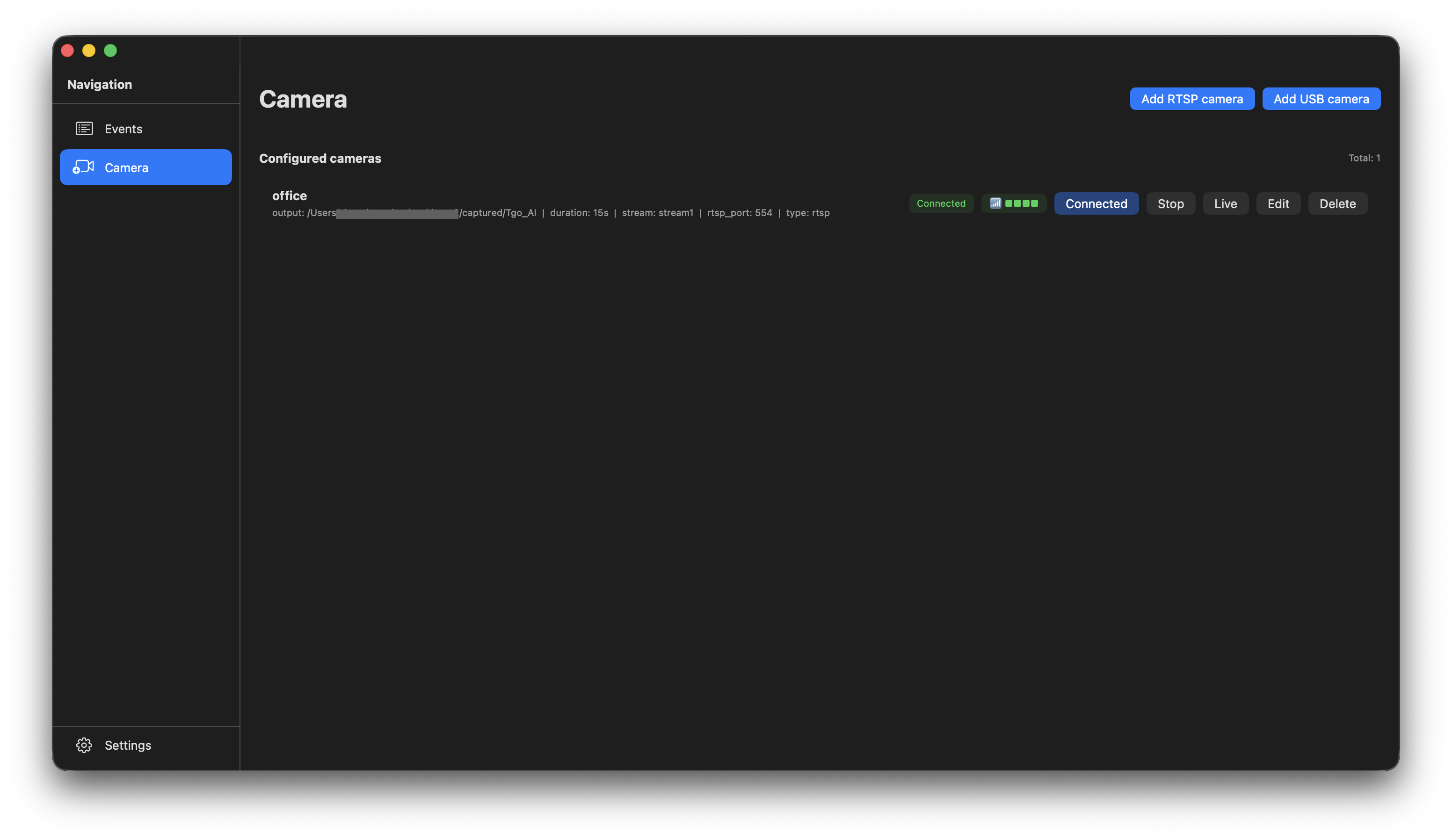
Next, go to the Camera tab and add your camera.
Currently supported camera types:
• RTSP Cameras
• External USB Cameras with microphone
For RTSP camera setup, please refer to the tutorials below:
Network Note:
Make sure the camera and your computer are connected to the same WiFi network.
Even when using the same router, some routers may enable network isolation (AP Isolation) between different WiFi bands (such as 2.4GHz and 5GHz), which can prevent devices from discovering each other.
Step 4. Test Camera and Start Recording
After adding the camera, use the Live feature to test whether the camera connection is successful.
Once the video stream works correctly, click Start to begin recording.
Step 5. Enable Video AI Analyzer
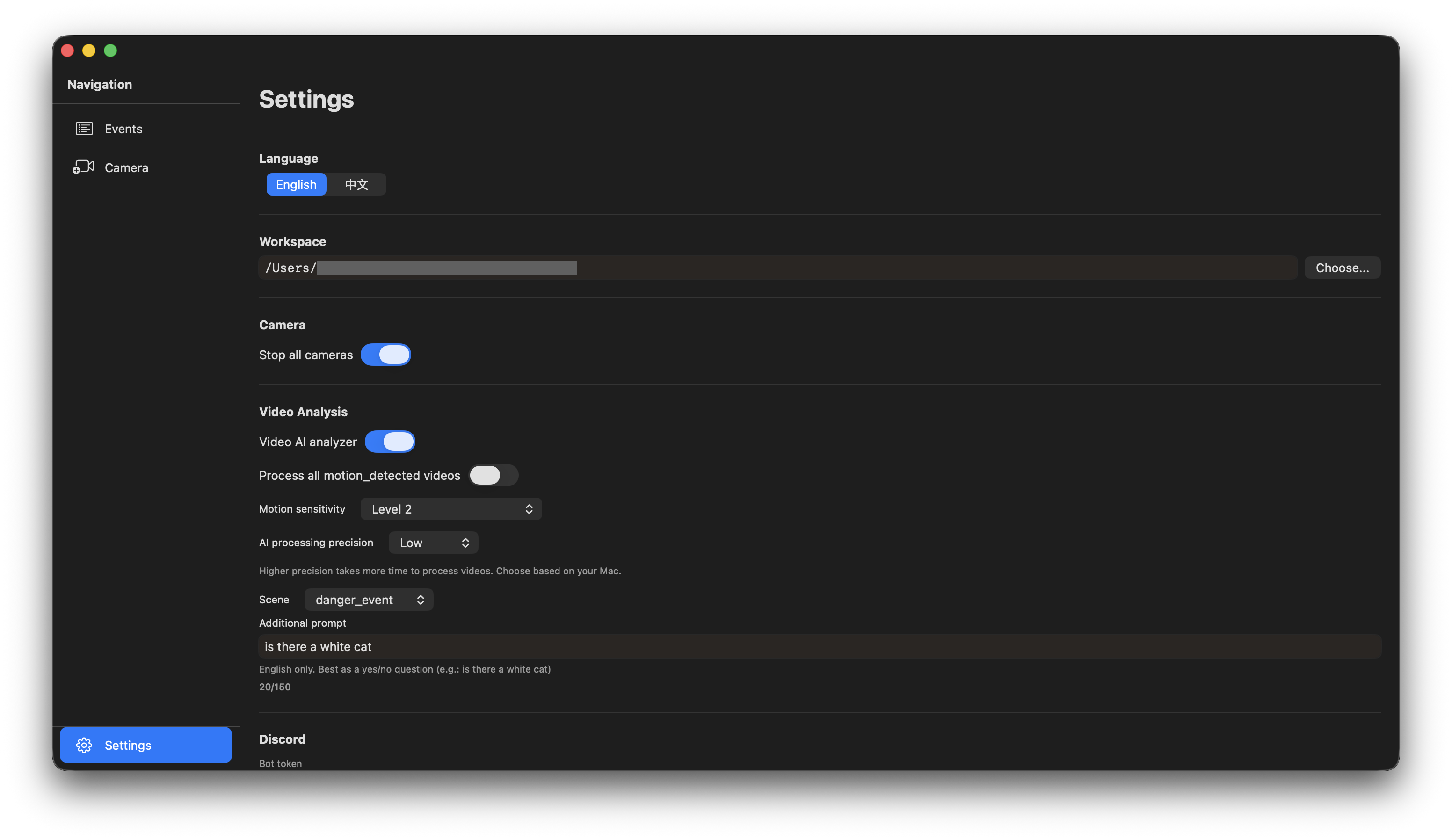
Go to the Settings page.
Enable Video AI Analyzer.
You can also provide an additional prompt question (English only) to guide the AI analysis of the video.
Note: If the Video AI Analyzer automatically turns off after running for a while, it may be due to insufficient system memory.
Current testing environment: Apple M4, 16GB RAM or above.
Motion Video Analysis Settings:
If Process all motion detected videos is disabled, the system will only analyze videos containing people, cats, or dogs.
If this option is enabled, object detection will be skipped and all motion-detected videos will be analyzed by the AI.
Step 6. (Optional) Configure Discord Notifications
You can configure Discord to receive AI analysis notifications.
Please follow the tutorial to obtain your Discord Token:
After configuration, when an AI analysis event is triggered (status = Yes), a notification will be sent to the configured Discord channel.
You can view notifications directly from your mobile Discord app.
If Attach Video is enabled, the corresponding video clip will be included in the notification.
Audio Threshold Setup: A notification will be triggered when the confidence score of a detected audio event exceeds the threshold.
If you do not want audio events to trigger Discord notifications, set the threshold to 1.000.
Step 7. Disclaimer
The AI analysis results are for reference only and may not always be accurate.
This project is still in an early stage, and many areas will continue to be improved.
We welcome users to report issues, submit feedback, and share different scenarios to help improve the system.