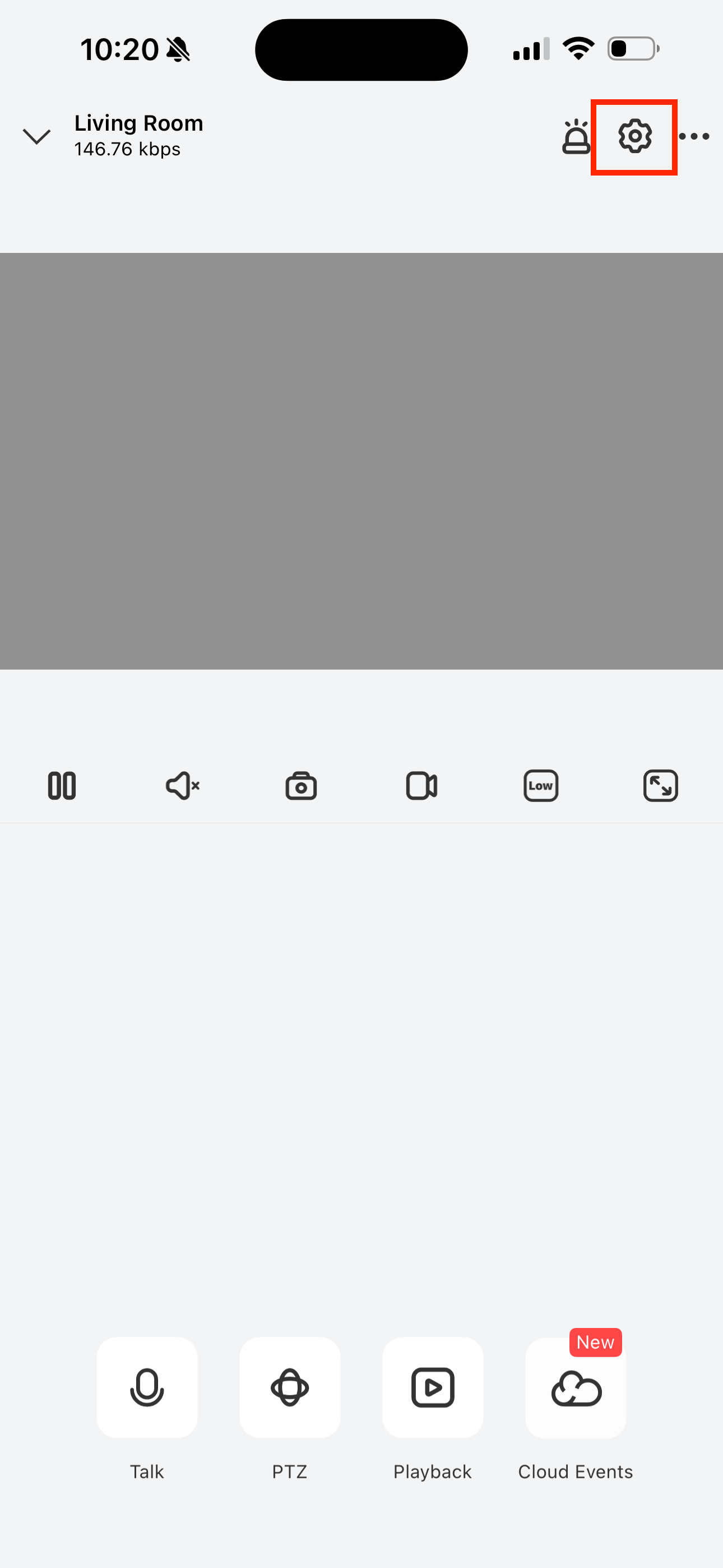
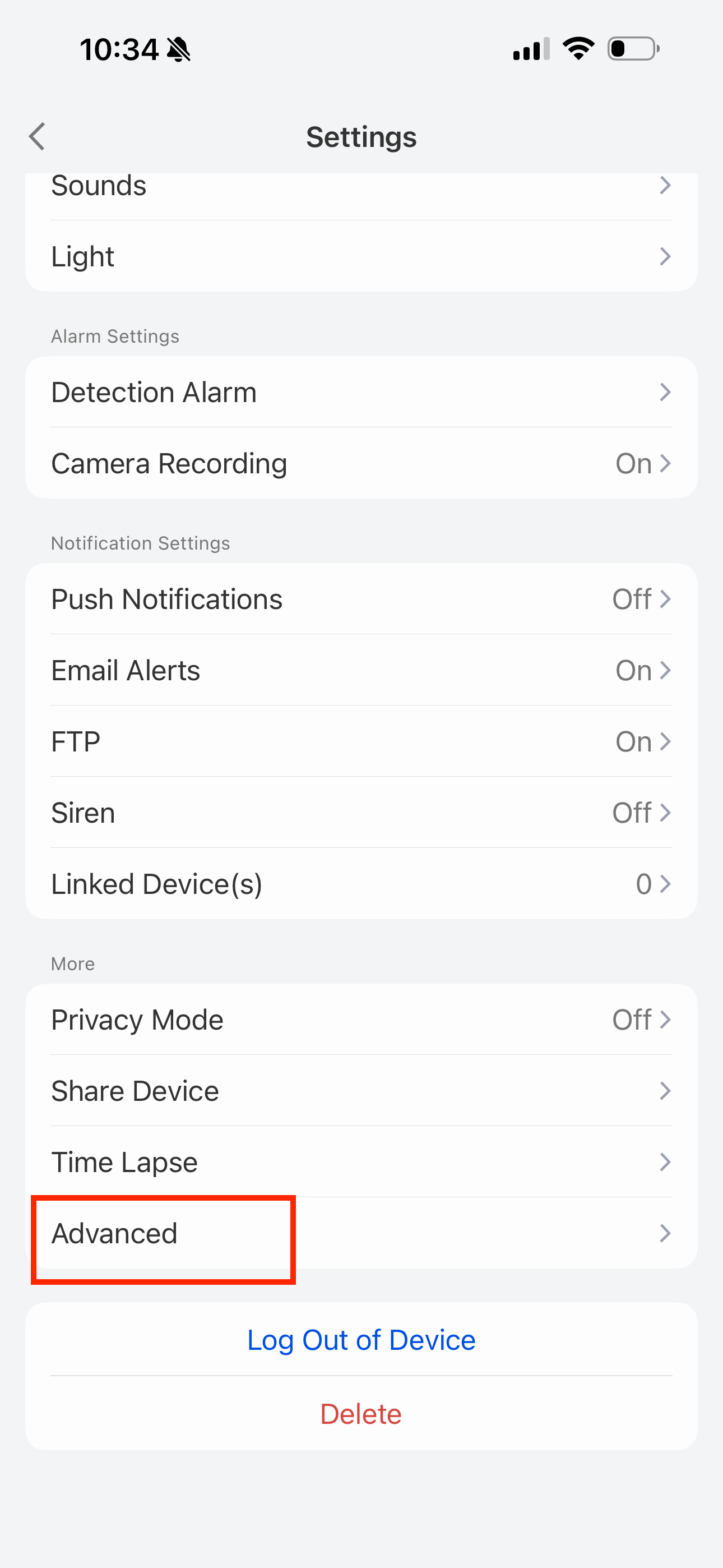
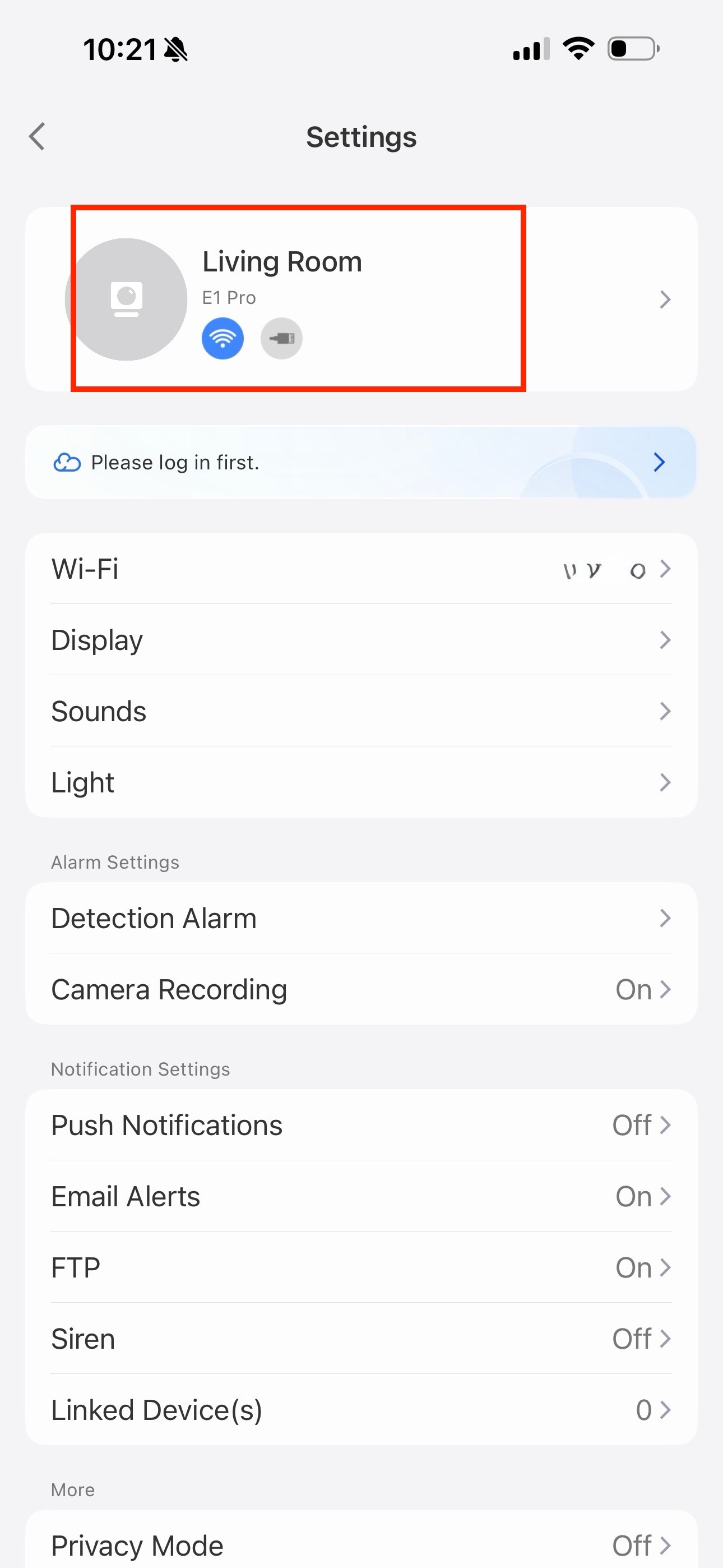
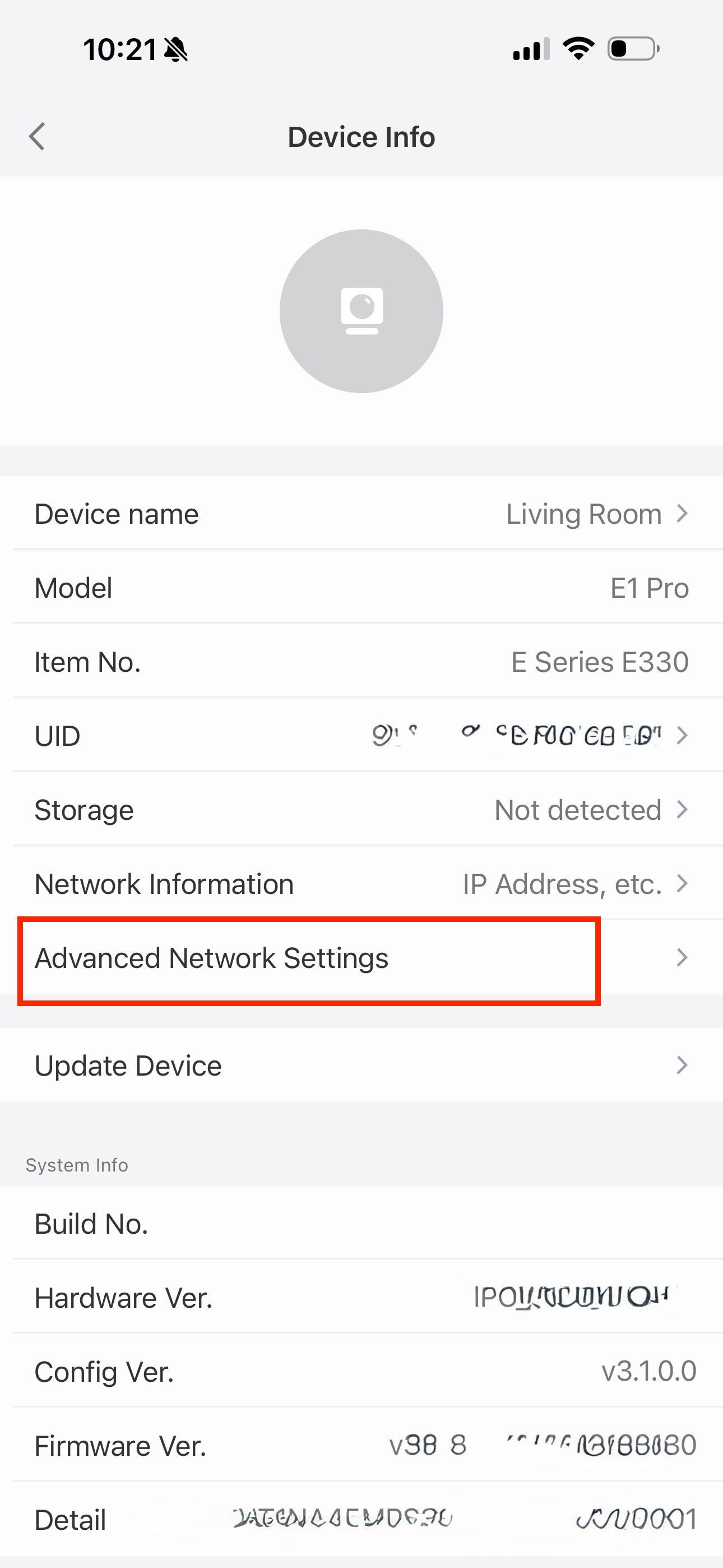
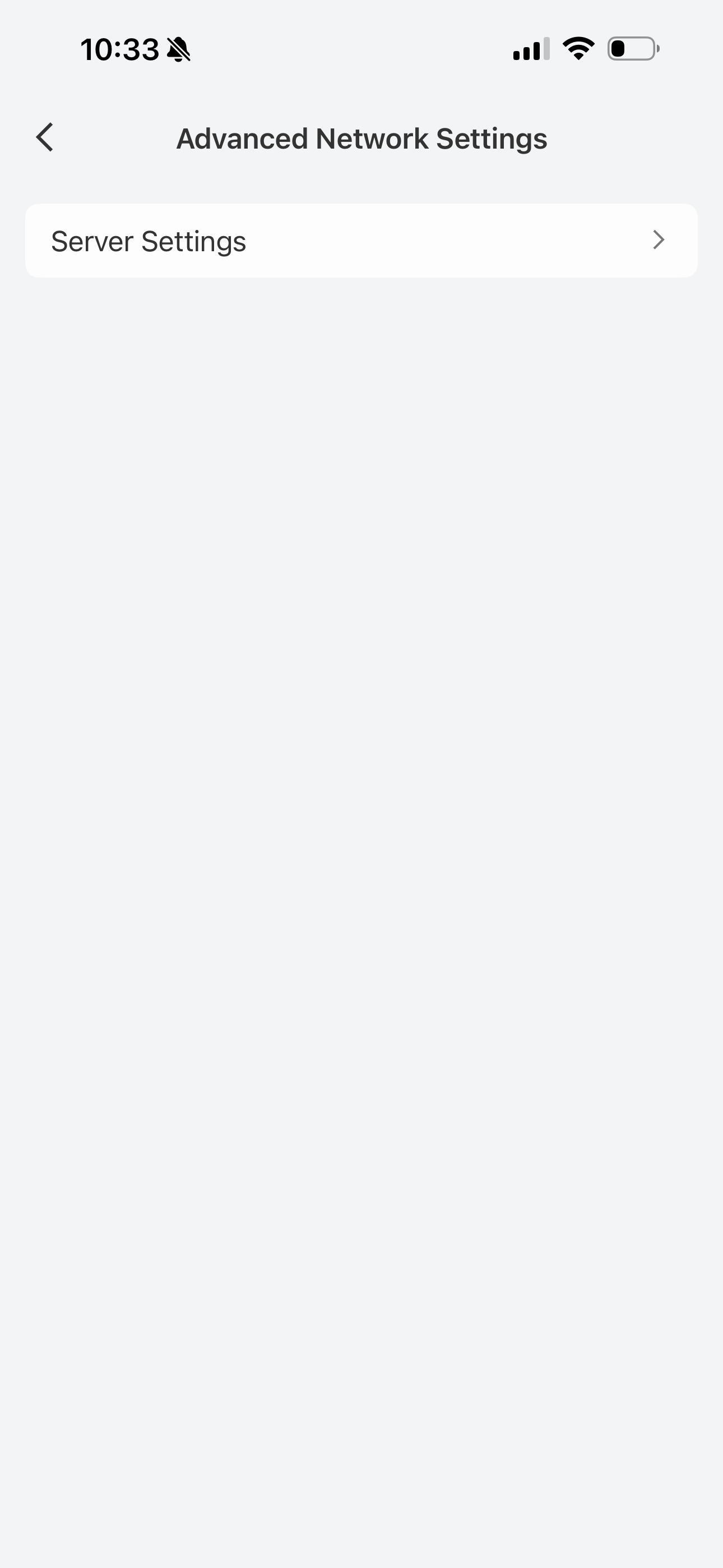
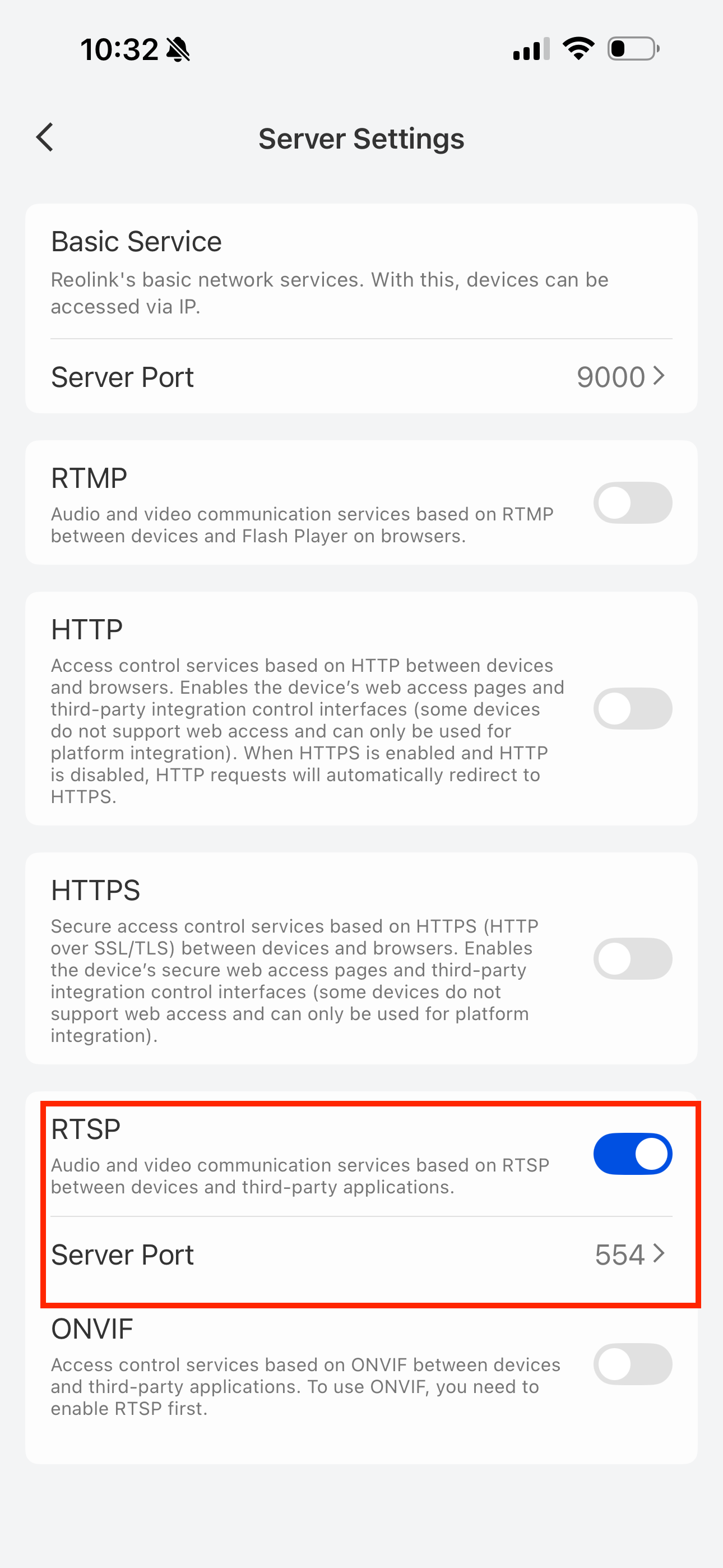
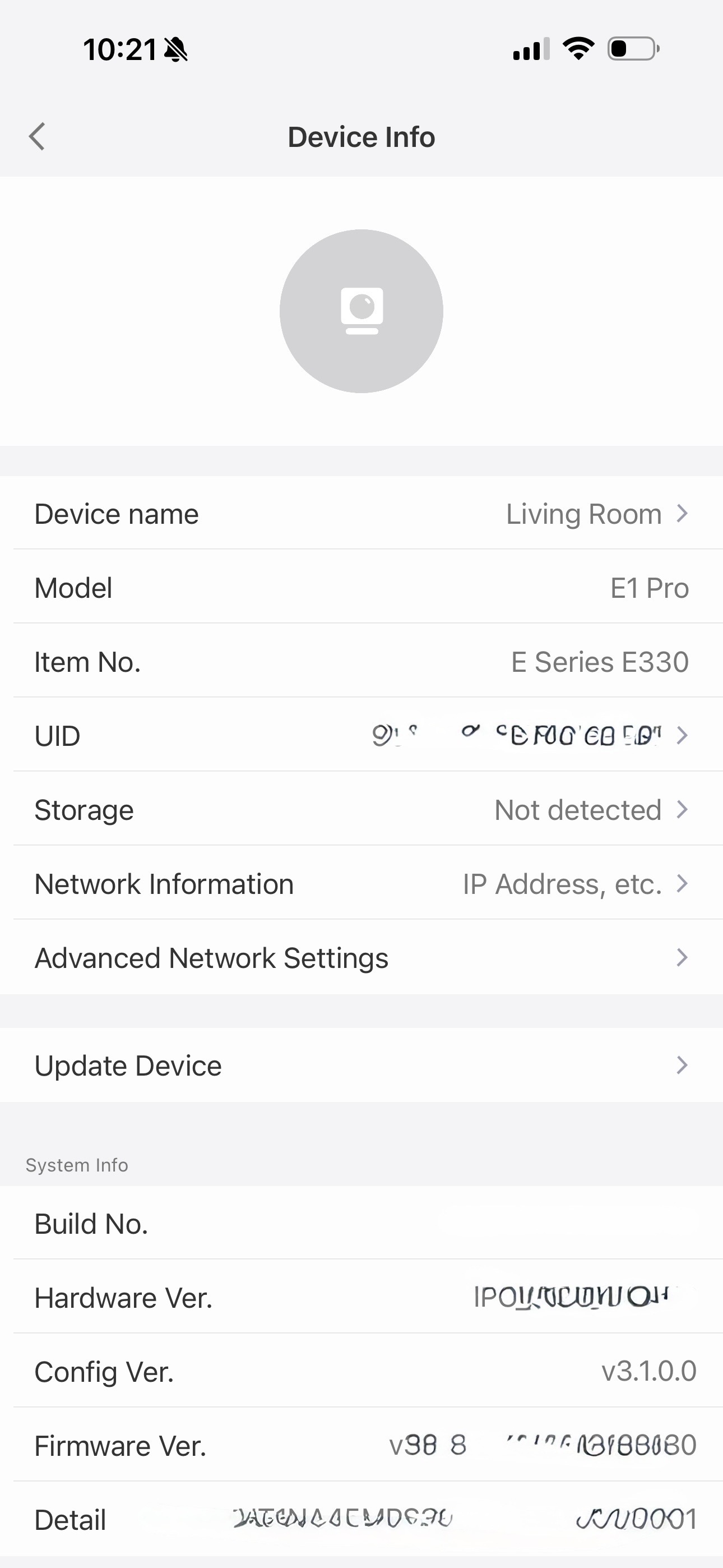
Step 1. Open the Reolink App Open the Reolink app, go to the main page, tap the camera device, then tap the settings icon in the top right corner.
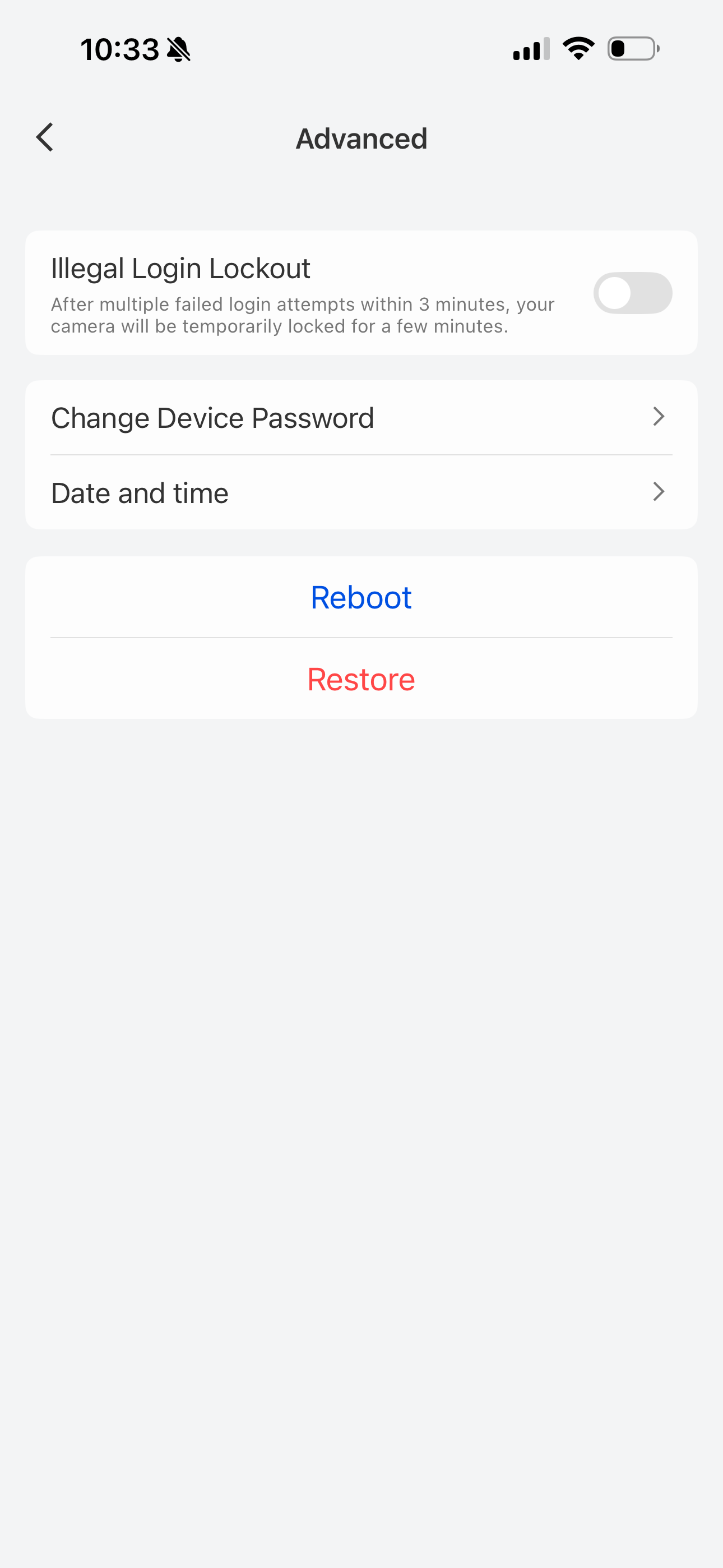
Step 3. Configure the Camera Account (RTSP account) Configure the Camera Account (RTSP account).This is the RTSP camera account, and the username and password set here will be required when configuring the camera in the Tigo Mac OS app.By default, the username is admin.
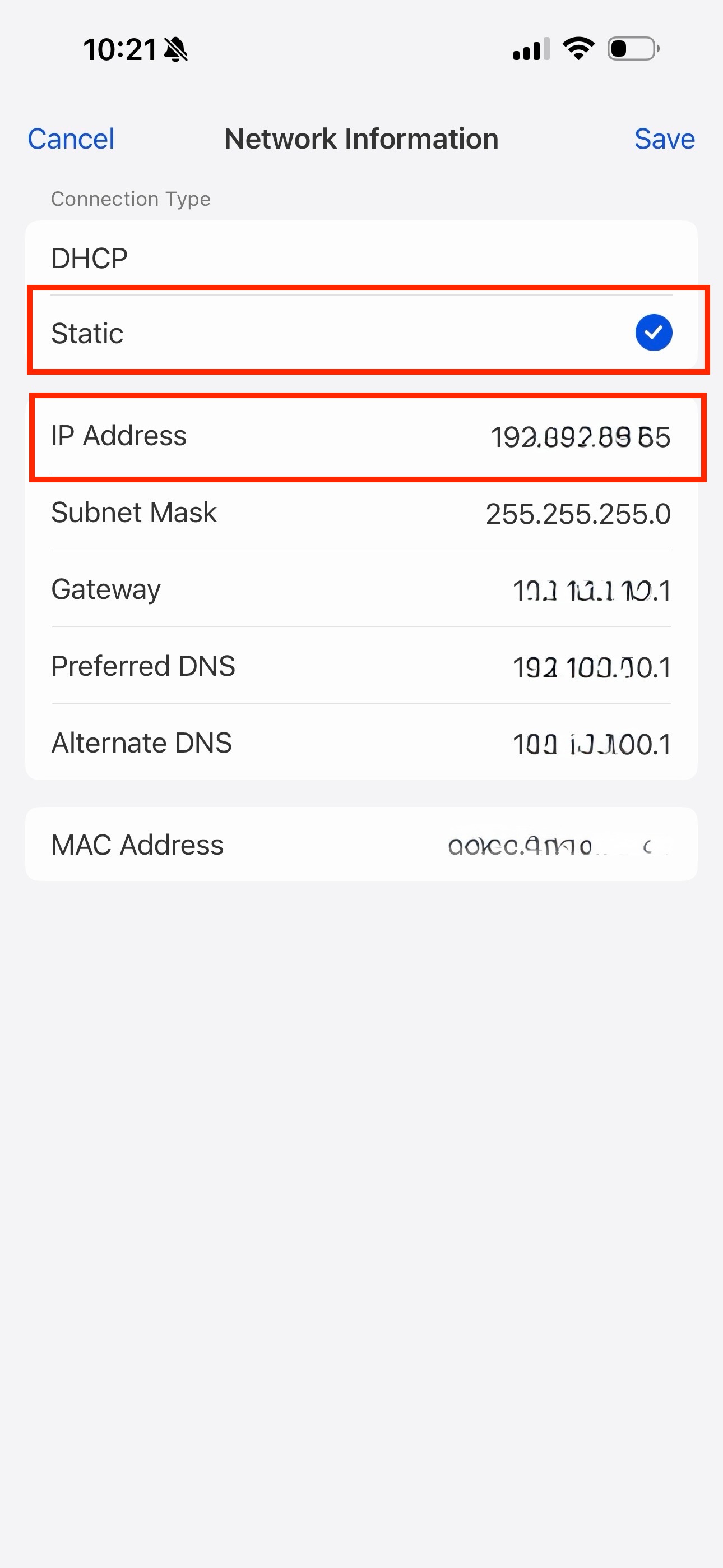
Step 9. Enable Static IP and check the IP address Enable Static IP and check the IP address.This IP address will be required when configuring the camera in the Tigo Mac OS app.