Step 1. Open the Tapo App
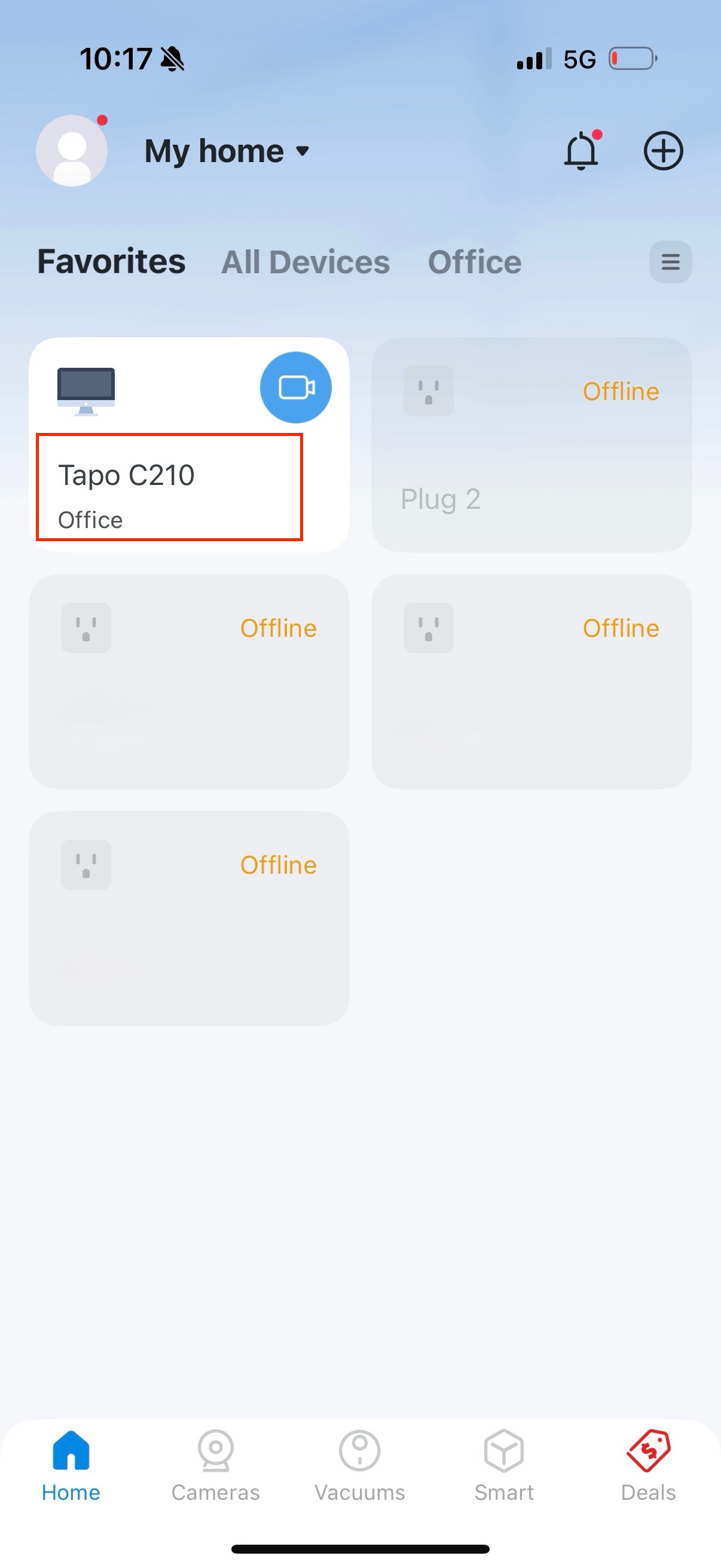
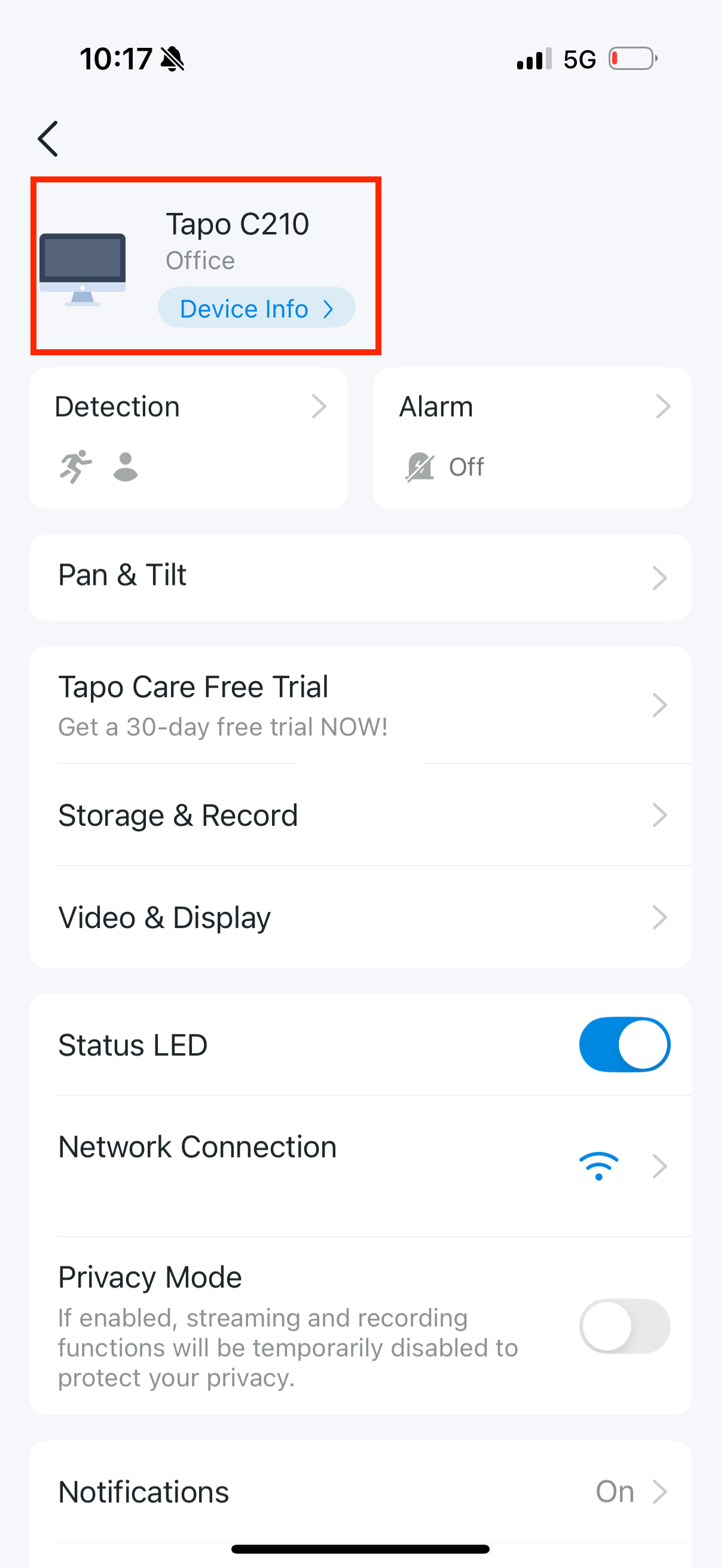
Open the Tapo app, go to the main page, and tap the camera device.
Step 2. Enter Camera Settings
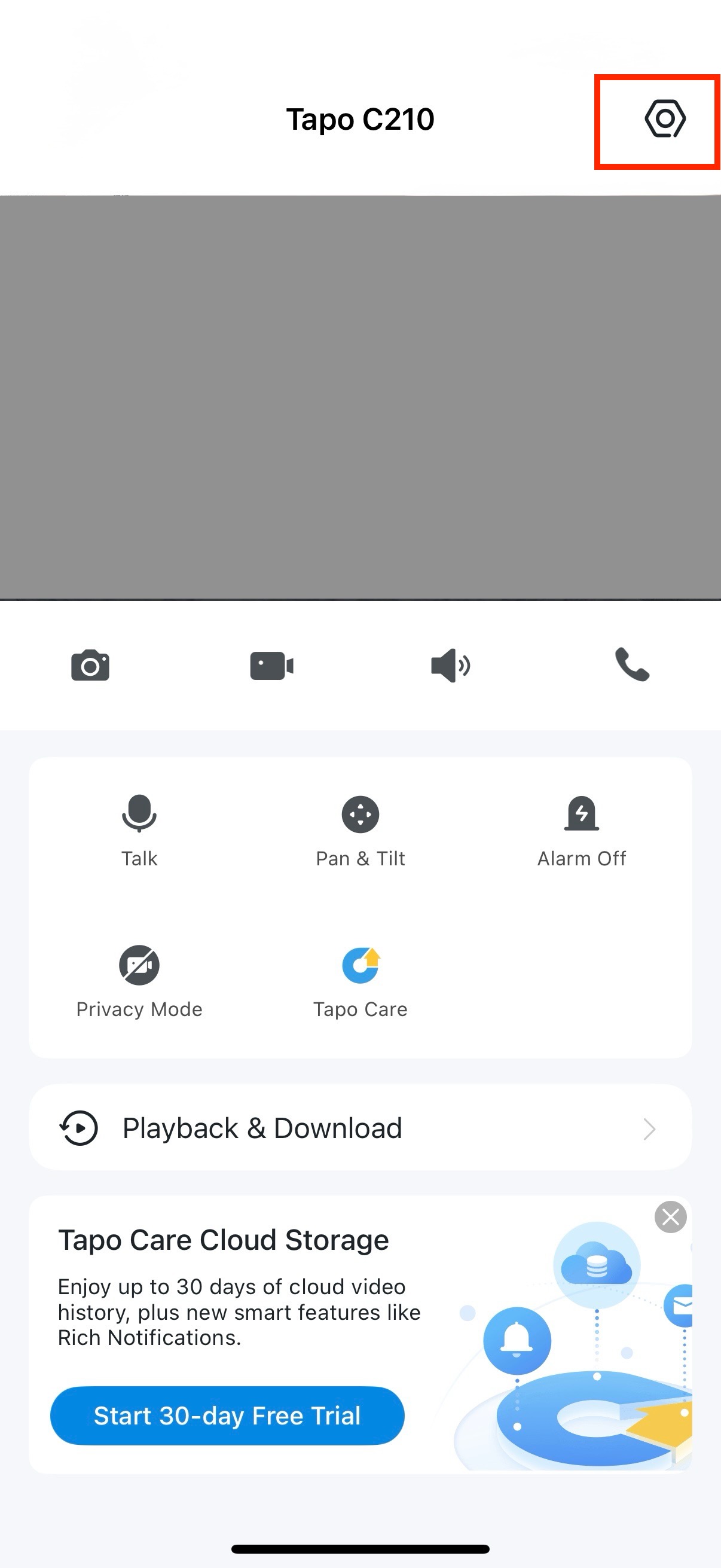
Enter the camera settings page.
Step 4. Set Camera Account
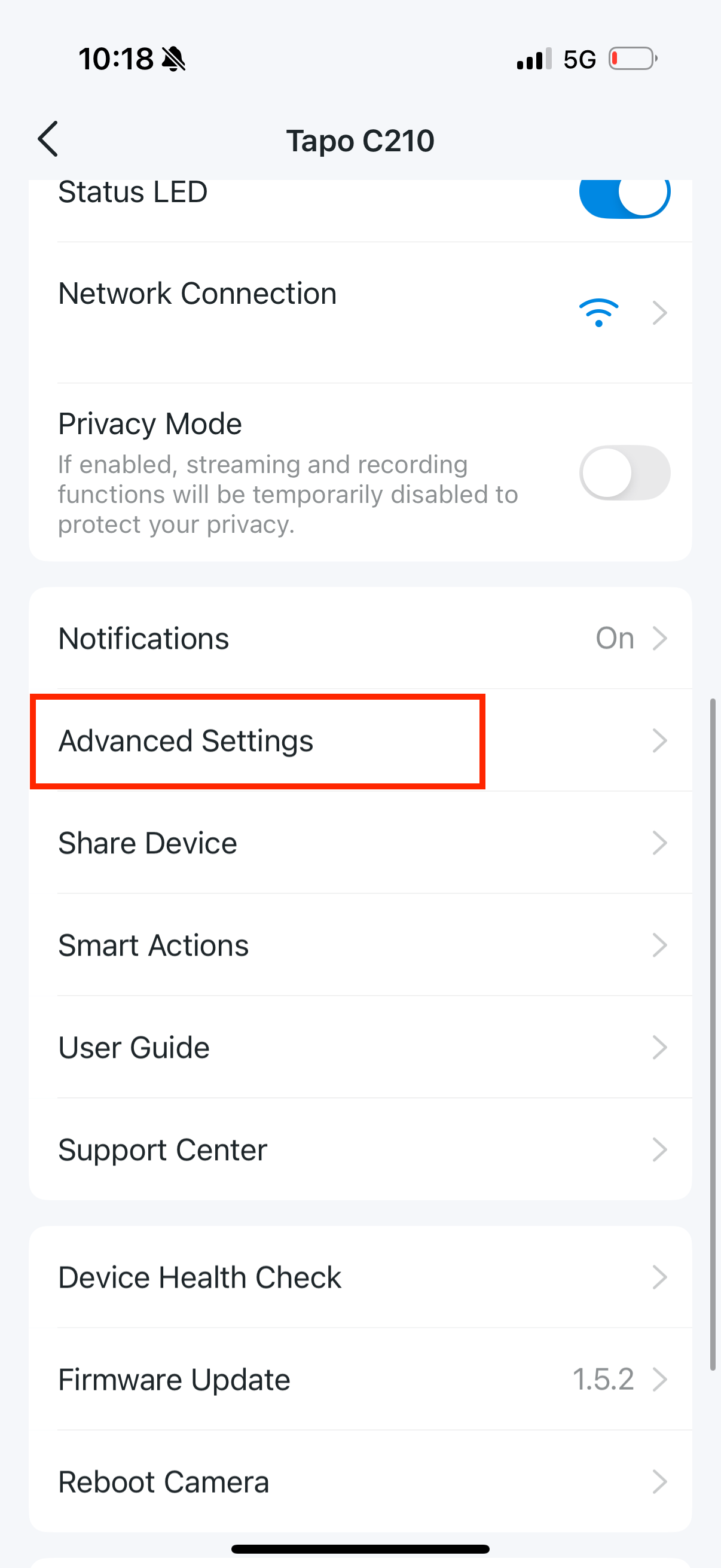
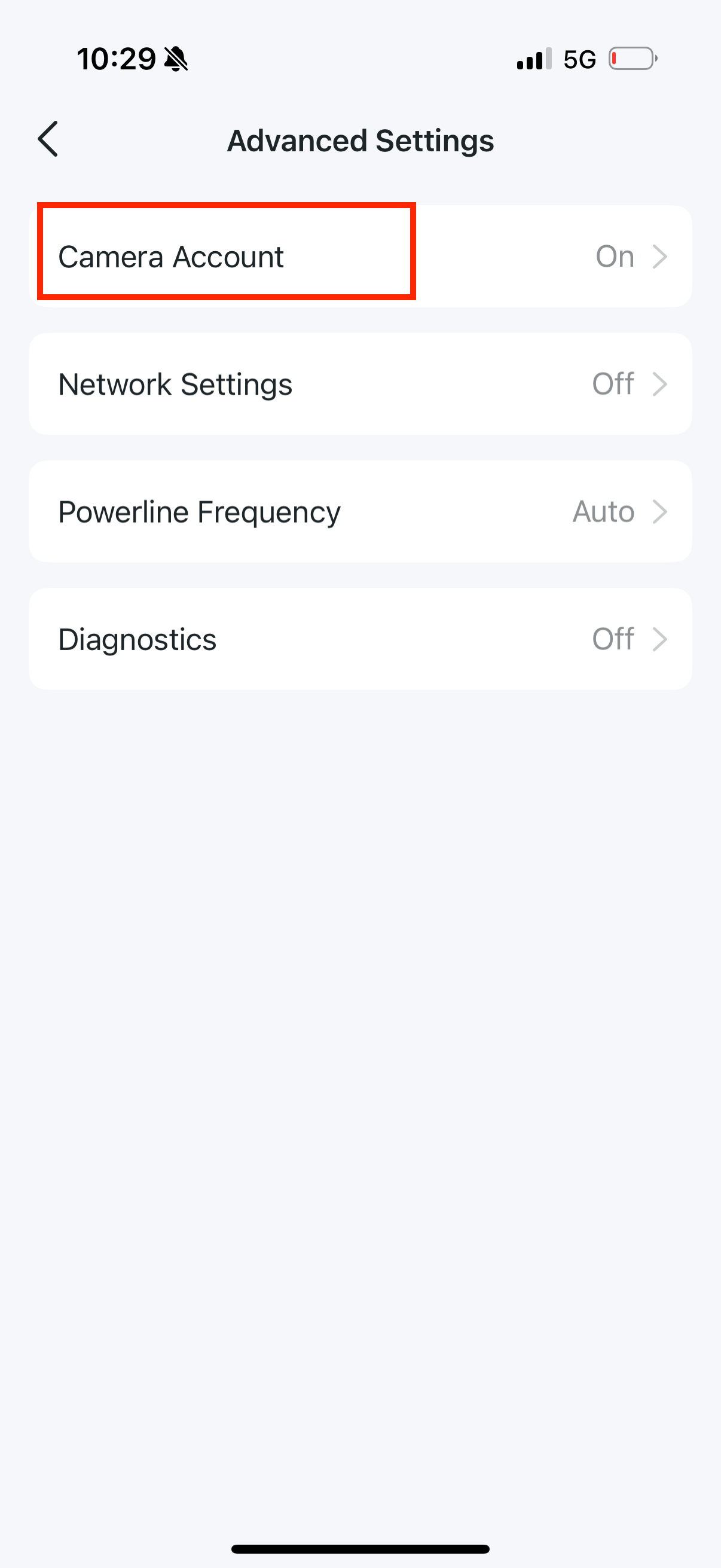
Go to Camera Account settings.
Step 5. Enable Camera Account
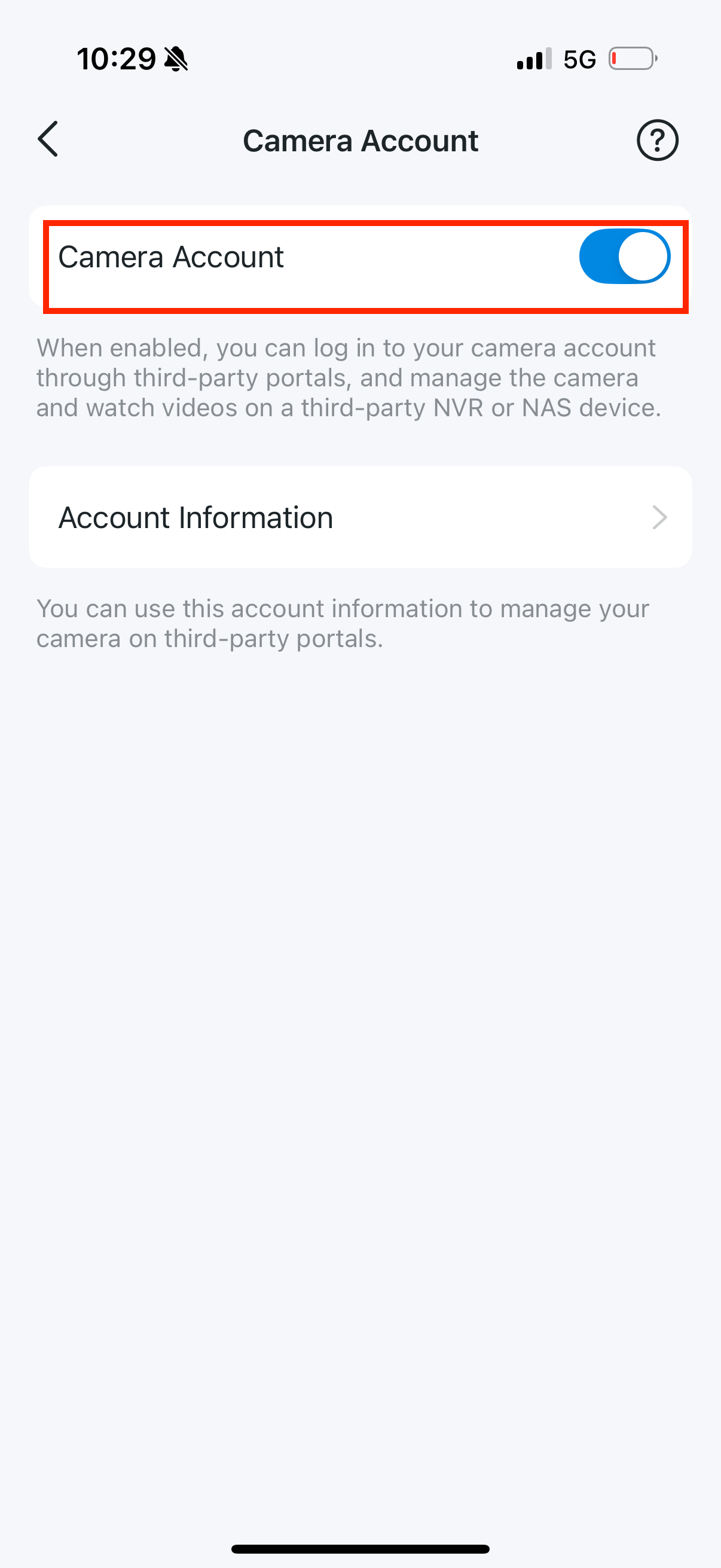
Enable (turn on) the Camera Account option.
Step 6. Configure RTSP Camera Account
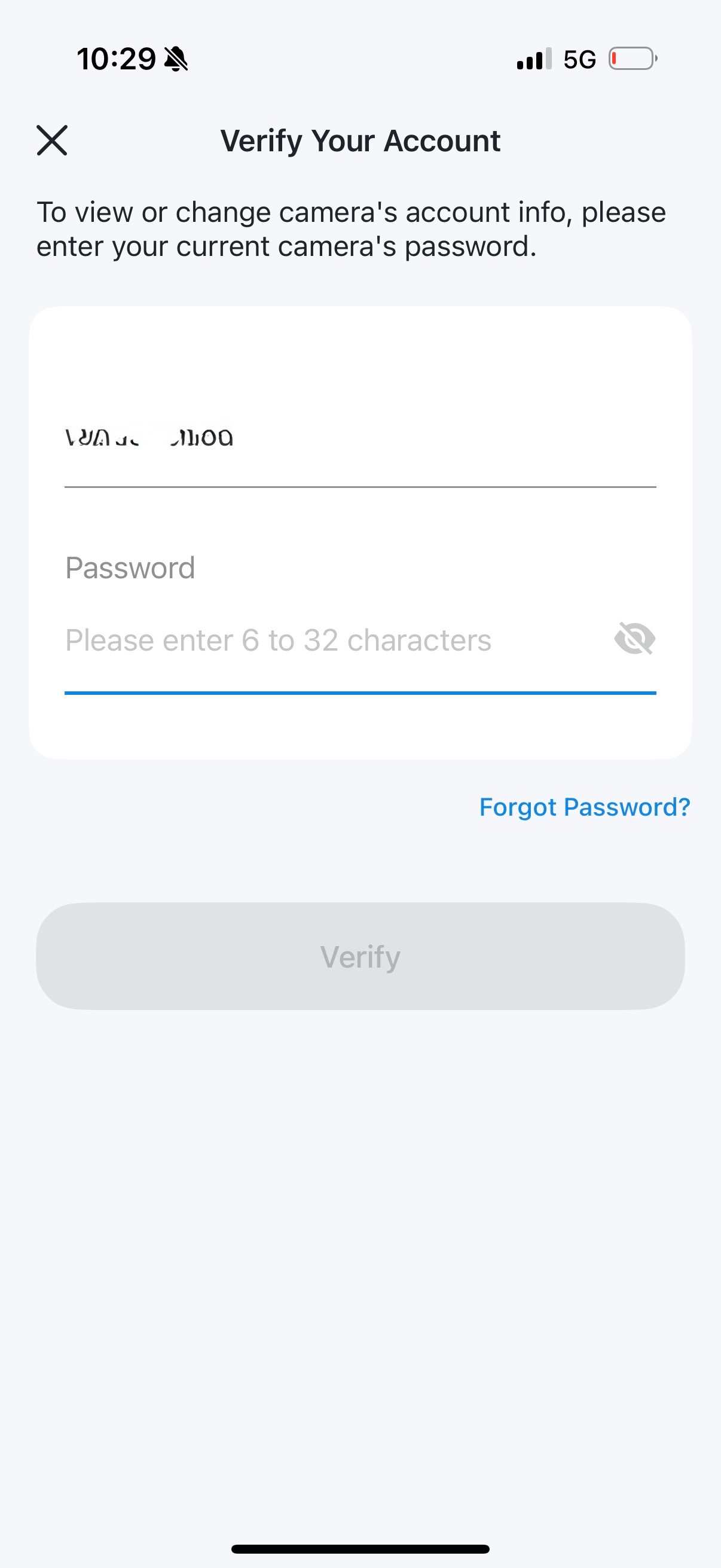
Set the Camera Account username and password.
This is the RTSP camera account, and these credentials will be required when configuring the camera in the Tigo Mac app.
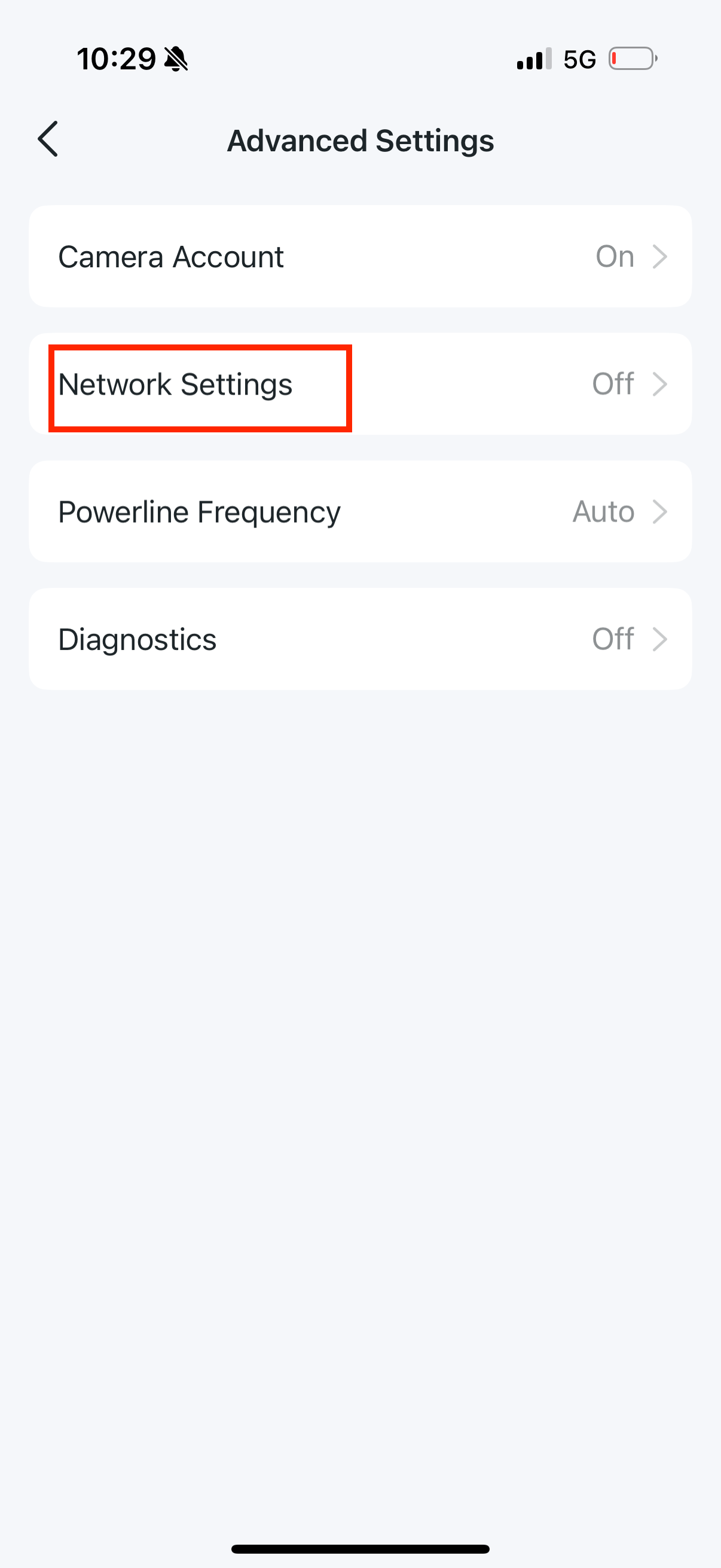
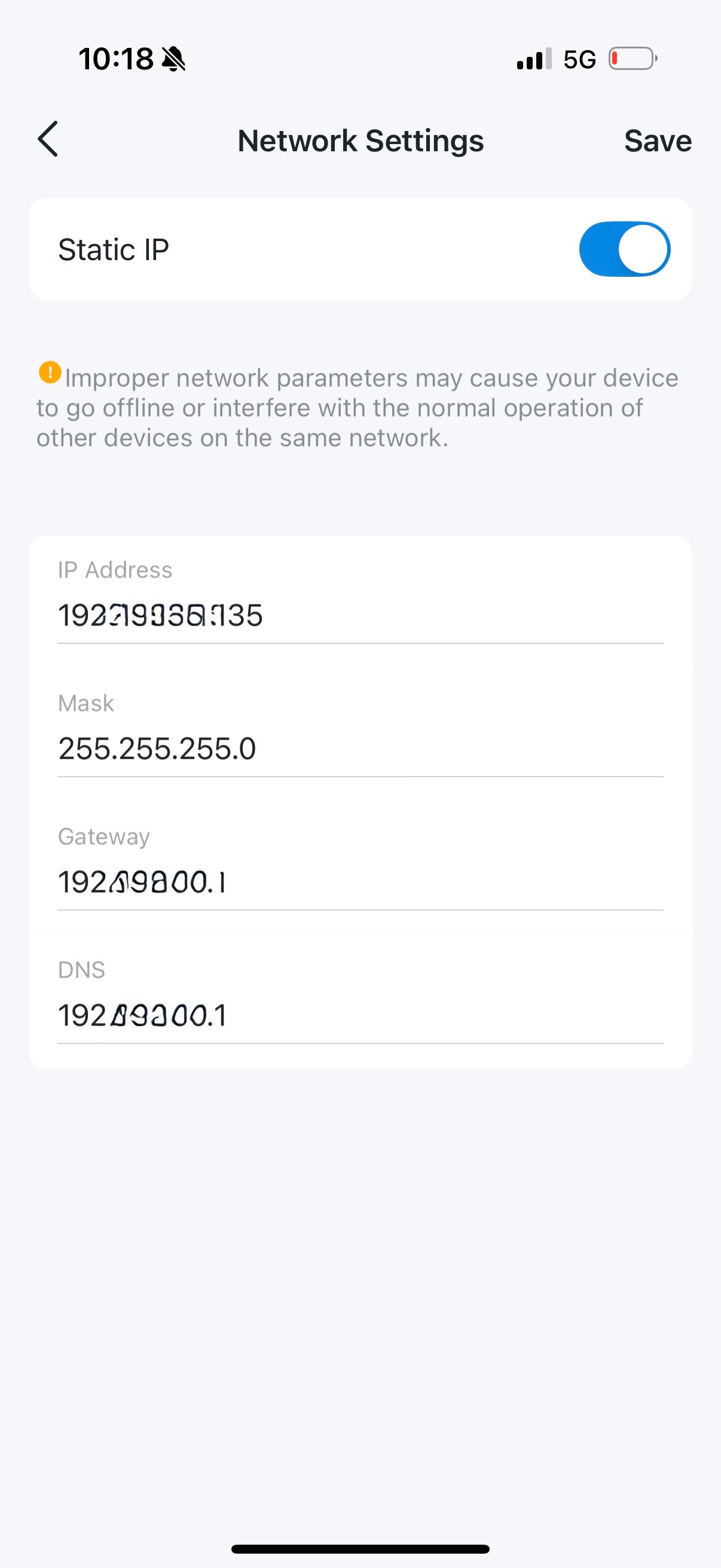
Step 8. Enable Static IP
Turn on Static IP and configure the IP address settings.
Step 9. Open Device Information
After setup is complete, tap Device.
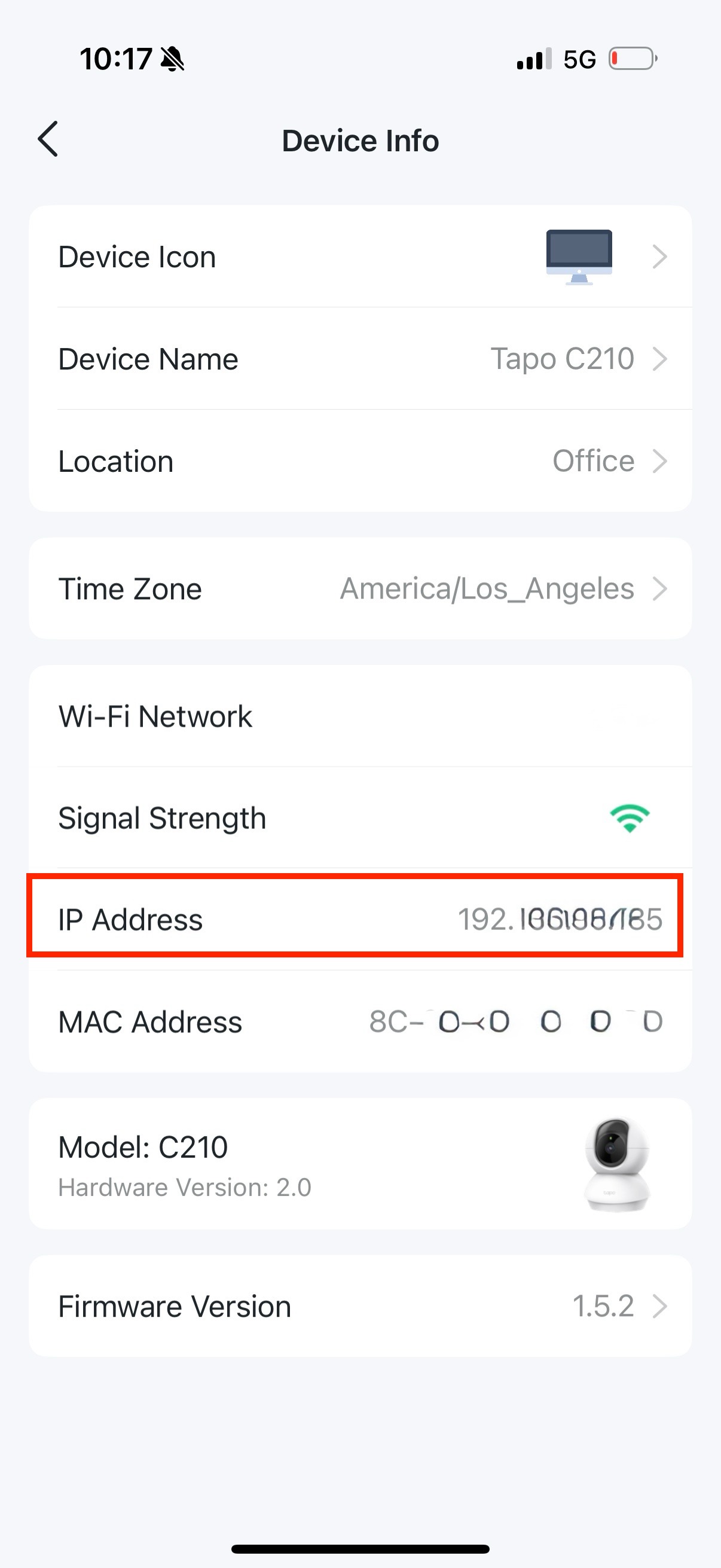
Step 10. Check Camera IP and MAC Address
View the camera’s IP address and MAC address.
This IP address will be required when configuring the camera in the Tigo Mac app.